Make the planner yours
Build stickers around your real routines, goals, pets, products, and memories.
Planner stickers
StickerSplit makes photo stickers for people decorating digital planners and journals, with free generation and previews. Sign up for 1 free credit; each downloaded image uses 1 credit.
Turn everyday moments, favorite objects, meals, pets, and routines into a coordinated sticker set for digital journals and planners.
Your sticker studio
One photo, separate stickers
This sample becomes five automatic cutouts. Each sticker is a separate transparent PNG, shown here with a purple border.


Person
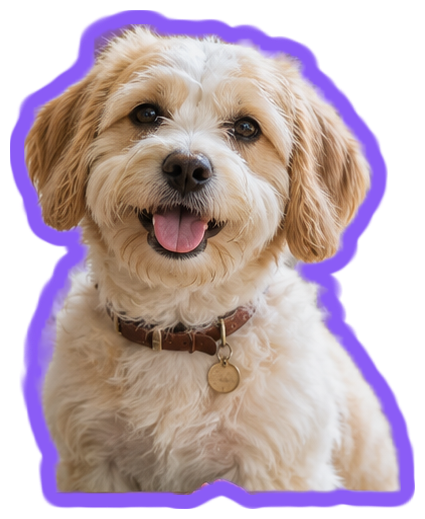
Dog
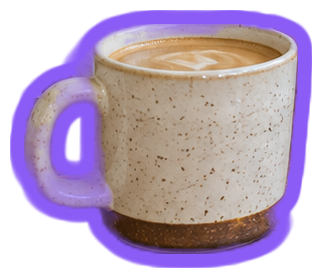
Coffee cup
Plant
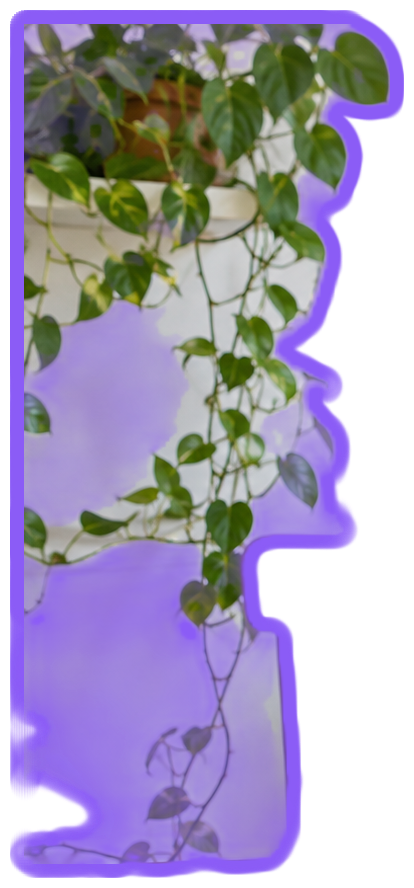
Hanging plant
Keep them all
Individual files or one ZIP
Build stickers around your real routines, goals, pets, products, and memories.
Use the same outline color and thickness across every sticker.
Transparent PNG files layer cleanly over digital planner pages.
Choose moments, meals, pets, or favorite objects that fit your journal theme.
Review the automatic cutouts and try one border color across the whole collection.
Download the images, extract the ZIP if you chose a set, and import them into your planner as images.
Planner stickers
PNG is the format to choose for digital planner stickers. Its transparent background lets the subject sit over your page without a solid rectangle behind it.
Import the downloaded PNG files as images in your planner or note-taking app. Add a PNG to the page and resize it to fit.
Yes. Use photos from a trip, a weekly routine, or a favorite color theme. Change the border once to give the entire set a consistent look.
Yes. Choose Download all to save one ZIP containing your finished stickers as separate PNG or WebP files. The ZIP uses 1 credit per image inside, and the total is shown before downloading.
Yes. Change Border thickness or Border color and all your sticker previews update immediately. Downloads keep the style you see. Set thickness to 0 for a cutout without a border.
Creating planner stickers and editing their borders is free without an account. Sign up for 1 free credit to download your first transparent PNG. Each image download costs 1 credit.
You can use JPG, PNG, or WebP images up to 25 MB each. Personal photos of pets, daily routines, trips, and favorite objects can become elements for your pages.
An already-transparent PNG keeps its artwork as a single sticker. Add the border you want, then download a transparent PNG for your planner.
The tool automatically finds people, pets, and common objects in photos. Choose an object yourself lets you add a subject that you want to include in the set.
You can download a sticker individually or remove unwanted results before choosing Download all. A ZIP contains the remaining stickers as separate image files.
Your photos are processed in your browser on your device. StickerSplit does not upload the image files to a server to make the cutouts.