Focus the sticker
Choose the person or object that carries the meaning of the photo.
Sticker background guide
This guide includes a background removal tool for people making photo stickers, with free generation and previews. Sign up for 1 free credit; each downloaded image uses 1 credit.
The best sticker does not look like a cropped rectangle. It keeps the recognizable subject, clears away the scene, and adds an edge that makes the cutout feel intentional.
Your sticker studio
One photo, separate stickers
This sample becomes five automatic cutouts. Each sticker is a separate transparent PNG, shown here with a purple border.


Person
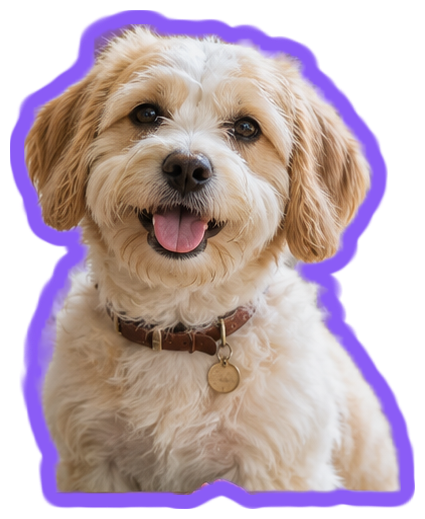
Dog
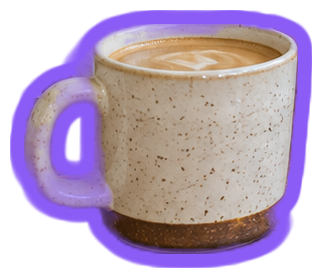
Coffee cup
Plant
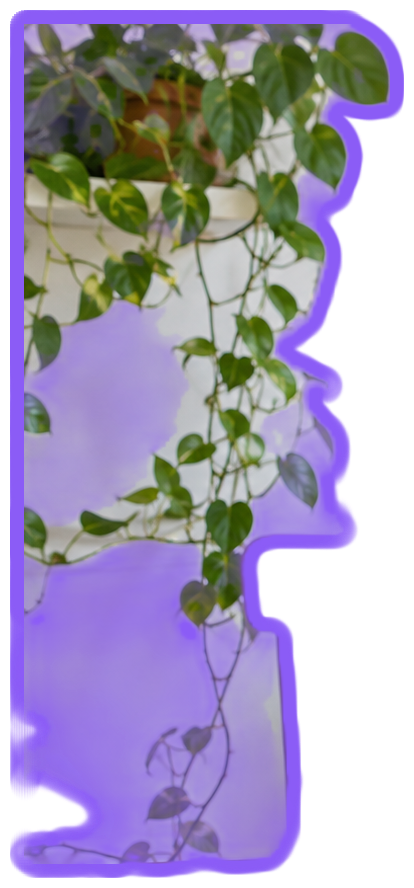
Hanging plant
Keep them all
Individual files or one ZIP
Choose the person or object that carries the meaning of the photo.
Turn several subjects in one image into individual transparent files.
Use an outline to keep the cutout visible wherever it is placed.
Pick a clear photo with a recognizable person, pet, or object.
Keep your favorite results. Use the manual selection when you want to add a different subject.
Choose an outline or set its thickness to 0, then download transparent PNG or WebP.
A good source photo gives the subject a visible edge. Start with even lighting and a person or object that is large enough to see clearly. Automatic detection creates separate stickers for common subjects, so you can keep just the useful parts.
Choose an object yourself to return to the original photo. Click inside the subject and inspect the highlighted cutout before selecting Create sticker. If the edge needs another approach, try High quality on that photo.
Use a light border for a dark page or a stronger color for a pale planner. Border edits update all stickers instantly. Set thickness to 0 for a plain transparent cutout; download PNG to place it over another design without bringing back the photo background.
Sticker background guide
Yes. Start with the automatic cutouts of the people in the photo, then use the manual selection to add another person when needed.
PNG and WebP both support transparency. Choose PNG image for designs and planners, or WhatsApp sticker for a 512px WebP image.
Yes. Choose Download all to save one ZIP containing your finished stickers as separate PNG or WebP files. The ZIP uses 1 credit per image inside, and the total is shown before downloading.
Yes. Change Border thickness or Border color and all your sticker previews update immediately. Downloads keep the style you see. Set thickness to 0 for a cutout without a border.
Background removal and border previews are free without an account. Sign in to download PNG, WebP, or ZIP files. New accounts receive 1 free credit; each downloaded image uses 1 credit.
You can add JPG, PNG, and WebP images up to 25 MB each. Keep the original photo when possible so the cutout starts with the available subject detail.
The tool automatically looks for people, pets, and common objects after you add a photo. It creates separate cutouts that you can style and download.
The transparent artwork stays as one sticker, ready for a border. Set Border thickness to 0 to download it without adding an outline.
Choose an object yourself and click inside the subject you want to add. Check the highlighted area, use Adjust selection if needed, and select Create sticker.
Try High quality under Quality for another approach to the cutout. Select Find stickers again to use the new mode on the same photo.
Background removal runs in your browser on your device. Your photo file is not uploaded to a server for cutout processing.